

Playing on a phone: touch controls, landscape mode and the home screen
Updated October 23, 20264 min read
Every game on the site works on a phone, but a few settings make it better: which way to hold it, how to get full screen, how to add the site to your home screen and what to do when a game does not start.
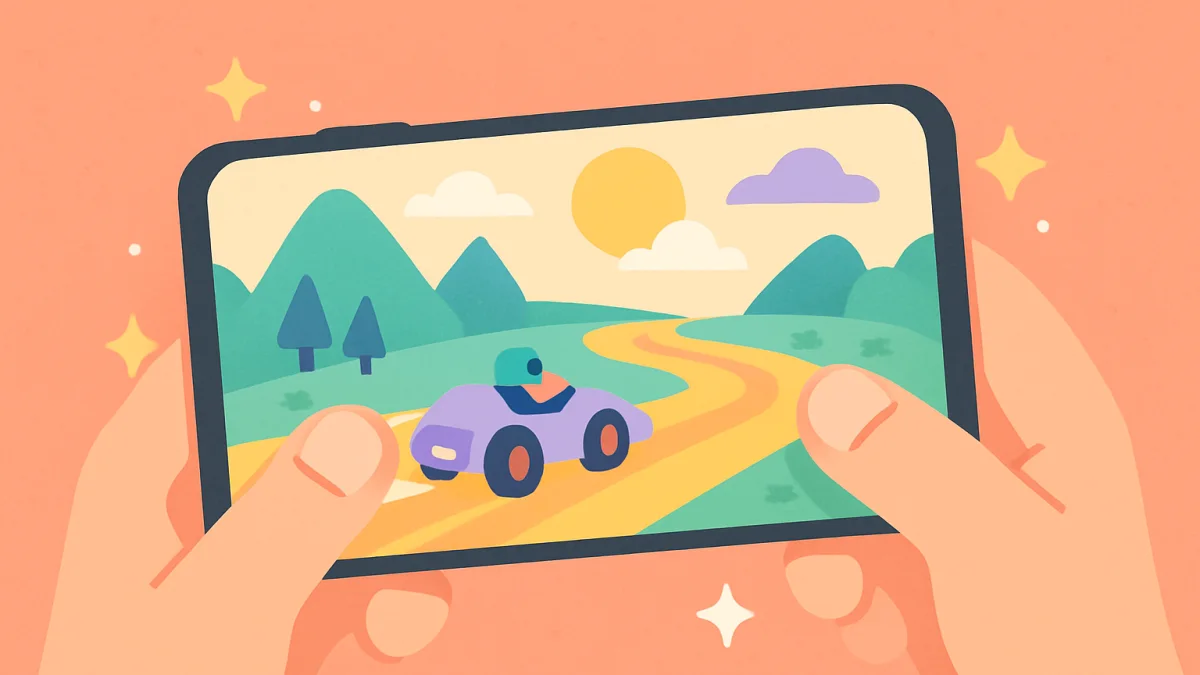
About half of our players use a phone. Every game on OGH Games is built to work with touch, but phones differ, browsers differ, and a few things are worth knowing. This is the short version of what we tell friends who ask.
Touch controls
Games that need a direction, like runners and racers, use swipes or the two halves of the screen. Gumdrop Dash and Harbor Hoppers swipe left and right to change lane, up to jump and down to slide. Twirlydrop drags left and right to turn the tower. Puzzle games like Bubble Burst! use a drag to aim and a release to shoot. Games with free movement, like our 3D games, put a virtual stick under your left thumb and let your right thumb look around by dragging anywhere else.
There is no need to press hard. A phone screen reads a light touch, and pressing hard only makes your thumb slower.
Which way to hold the phone
Each game tells the browser which orientation it prefers, and the page shows a small rotate hint when you hold the phone the wrong way. Runners and vertical puzzles are portrait games; racing, platform and 3D games are landscape. If the hint appears, turn the phone and the game resizes by itself. If the screen does not rotate, your phone's rotation lock is on: it is in the quick settings panel on both Android and iPhone.
Full screen
The full screen button in the game toolbar hides the browser bars and gives the game the whole display. On Android it works in every browser. On iPhone, Safari does not allow full screen for web pages, so the game uses the largest area it can; adding the site to your home screen (next section) removes the browser bars completely.
Add the site to your home screen
This makes OGH Games open like an app, with its own icon and no address bar:
- Android (Chrome): tap the three dots in the corner, then Add to Home screen.
- iPhone and iPad (Safari): tap the share button at the bottom, then Add to Home Screen.
Nothing is downloaded; the icon simply opens the site. Your favourites, recently played games and saved progress are all still there.
Sound
Phones do not play sound from a web page until you have touched the screen once, which is why every game starts with a tap. If a game is silent after that, check the mute switch on the side of an iPhone and the media volume on Android; the ringer volume is separate from the media volume on most phones. Every game has its own sound and music toggles in its settings too.
Data use
A game loads once, between 2 and 15 MB depending on the game, and then runs from the phone's memory. Playing for an hour uses no more data than the initial load. If you are on a tight plan, load the games you like on Wi-Fi first; the browser keeps them for a while.
Saved progress
Progress is saved on the device, in the browser you used. Switching from Chrome to Safari, or clearing the browser's site data, starts the games from scratch. An account on the site saves your favourites, ratings and history, but not the progress inside a game, which stays on the device.
When a game does not start
- Reload the page. Most problems are a download that stopped halfway.
- Close other tabs. A phone with twenty open tabs has little memory left for a 3D game.
- Check for a browser update. Old browsers lack features our newer games use.
- Try another browser. Chrome, Firefox, Samsung Internet and Safari all work; some privacy browsers block the storage games need to save progress.
If none of that helps, the Report a problem button under the game sends us the phone model and browser automatically with your message, and we usually fix phone-specific issues within days.
The app
We also publish a small Android app, OGH Games, that opens the same games with the same saved progress. It is the home screen shortcut with a nicer icon and a few extras, and it is optional: the site in the browser is the full experience.